Dear HarmonySite Administrator,
One new feature to announce today: Waiting lists for events.
To be clear, this is for each event's AVAILABILITY system, where members indicate they are available to perform at the event, but there's limited space on the stage. This is nothing to do with the event's AUDIENCE.
It's already possible to set limits on the number of members that can perform at events (one limit for each section, and one more limit for overall numbers - all optional). In the past, if those limits were reached, then it was simply not possible for FURTHER members to indicate they were coming to the event. Now, if you enable a waiting list for the event, and the event becomes full, then members CAN indicate that they want to come. If they do so, they will be placed on the event's waiting list.
Admins have FULL CONTROL over this waiting list. They can "accept" or "decline" anyone on the waiting list, and even bump people who WERE accepted back onto the waiting list. If a member's waiting list status is ever changed by an admin, the member is sent an email automatically, notifying them of this change.
The waiting list can be set up in two modes...
- AUTO: People are added to the waiting list automatically. If anyone who is already marked as accepted/coming to the event changes their mind and indicates they are now NOT coming, the next person on the waiting list is automatically accepted (and they are notified via email).
- MANUAL: People are still added to the waiting list automatically, but if ever a new slot becomes free, it will remain free until an admin fills it.
You can switch between the two modes at any time.
How to Enable a Waiting List for an Event
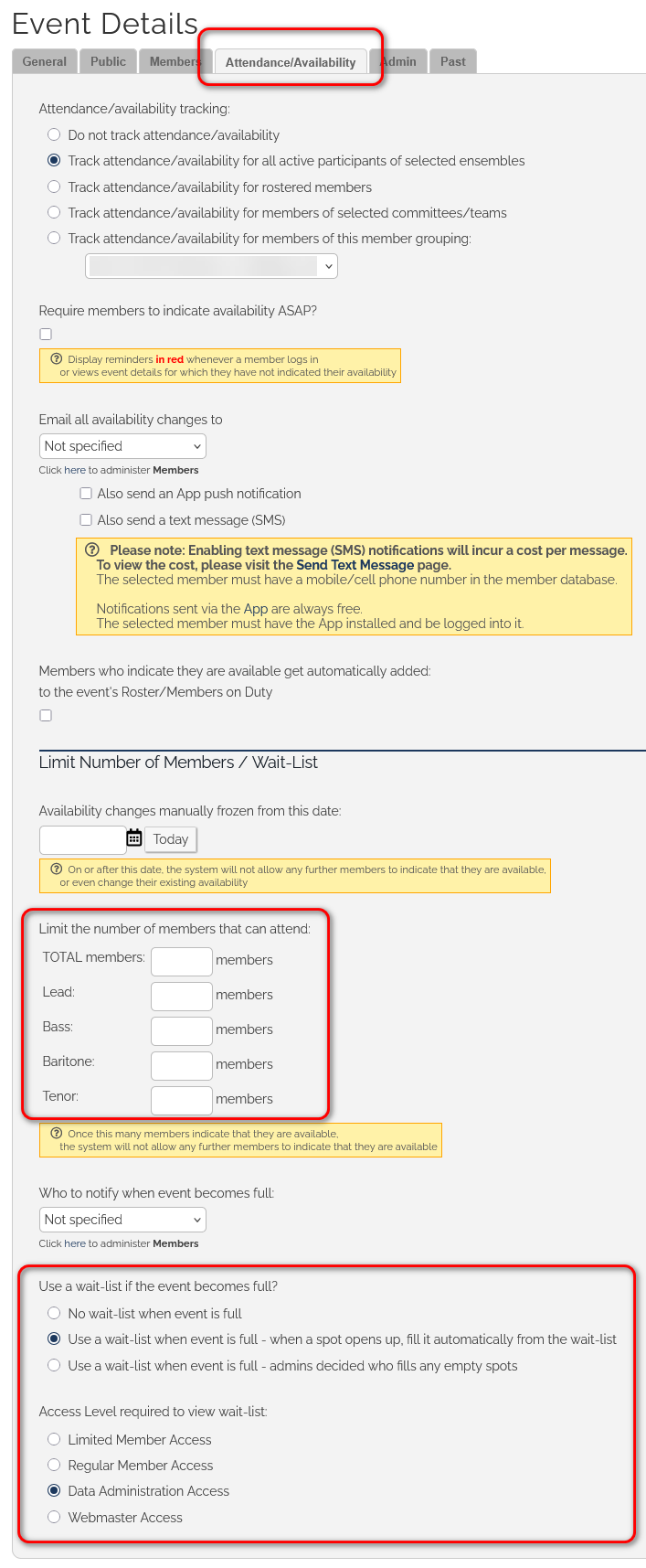
To enable a waiting list for an event...
- Visit the event's page, and click the "Update" link at the top of the page
- Click the "Attendance/Availability" tab
- Scroll down to the section called "Limit Number of Members / Wait-List"
- Ensure that there's at least one limit on the number of members that can attend - in one section and/or overall
- Select either the 2nd (automatic) or 3rd (manual) option from the choices called "Use a wait-list if the event becomes full"
- Optionally decide what level of access is required to view the waiting list. By default its "Data Administration Access", but you can open the waiting list so that regular members can view it (they won't be able to change anything).
- Save your changes
Back on the event's page, in the "Attendance / Availability" section, you'll see the limits shown, and (more importantly) a link to where you can view/adjust the waiting list...
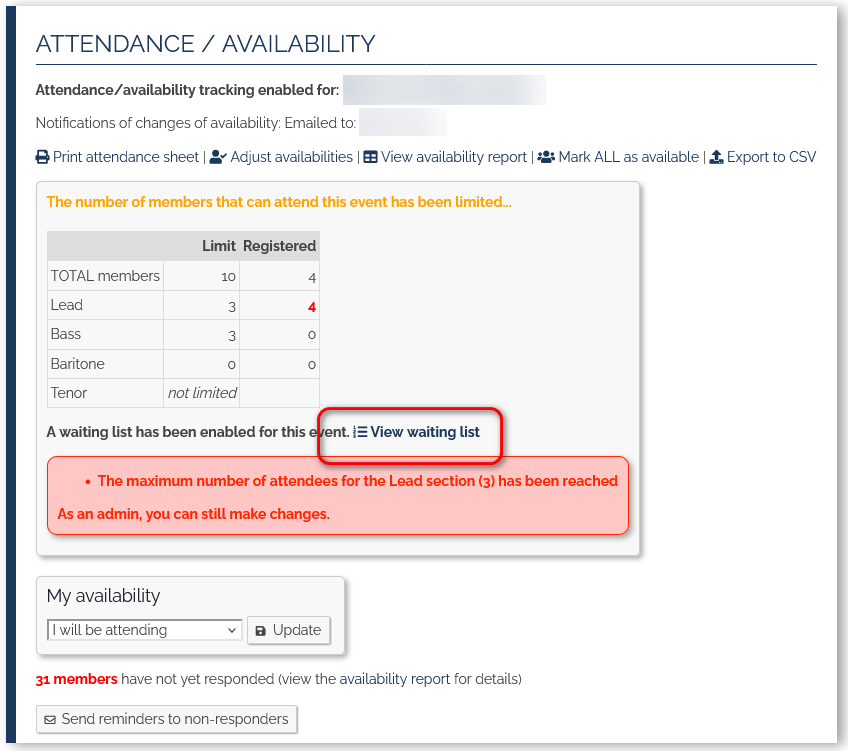
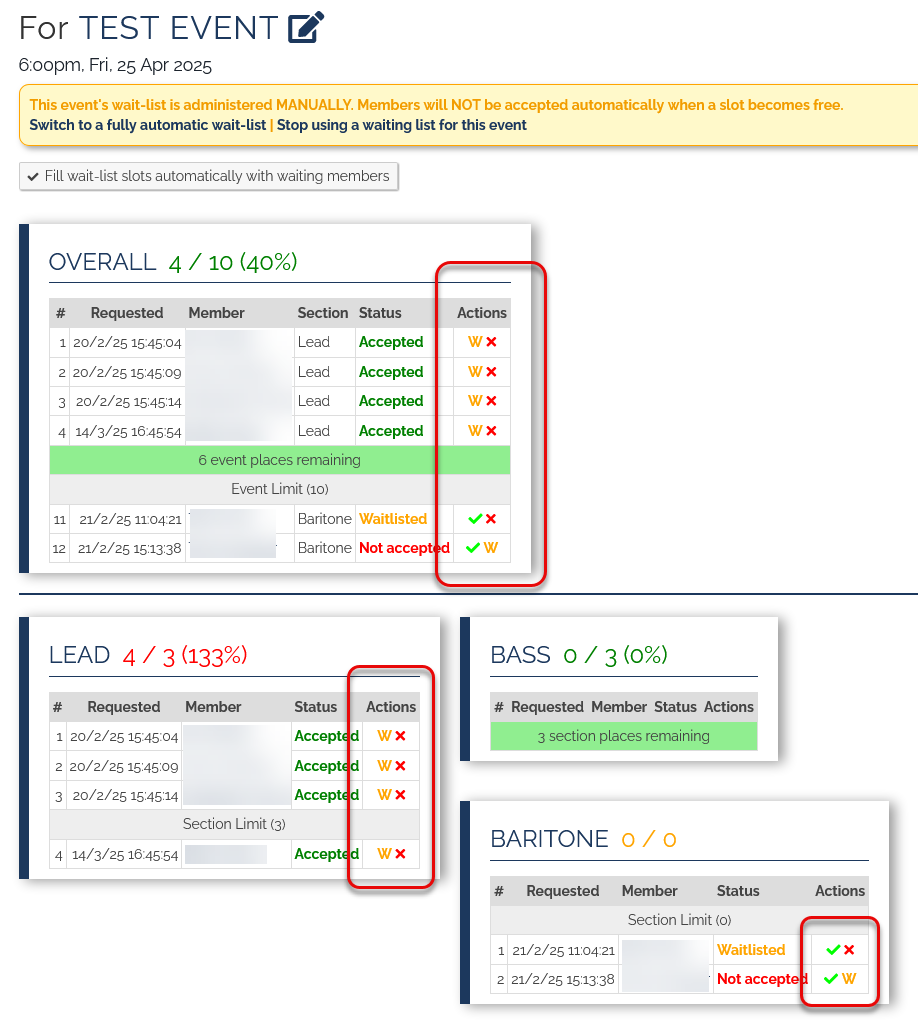
Click that link, and you'll get to the (new) Waiting Lists page, where you'll see one list for every section that you set a limit for. You can adjust each waiting list via the icons in the "Actions" column of the list.
The "W" means "put this member on the waiting list.
The "X" means mark the member as "not accepted".
The "ü" means "accept the member for the event.
Notes
- It's possible to have a waitlist with a limit of ZERO members, where EVERYONE gets added to the waiting list when they indicate they want to perform at the event. You might want to do this so that your admins can approve every performer for the event.
- Even if an event is full, admins can always add anyone to the event (even themselves).
Enjoy!
In harmony,
Mark Virtue
HarmonySite
Australia
+61 2 8005 4277 (Australian number)
In North America, call: 1-415-651-7009 (San Francisco number)